
How to create a custom exercise in BarbellPin
Give the movement a recognisable name, choose the measurements you need and add it to a routine without confusing it with another library entry.
BarbellPin ·
Imagine your gym has a machine you have used for months, but you cannot find a library entry that matches it. You could select something with a similar name and hope you remember the difference. Or you could create a custom exercise in BarbellPin, identify it clearly and use it in the routine you are preparing. This guide explains the second option in the phone app.
Our example is a variation of a movement you already know. You are not inventing an exercise or learning its technique from a form. Creating an entry organises your record: which movement you do, its primary muscle and the numbers you intend to track. If you are unsure how to perform it or which muscle to select, ask someone qualified before filling those fields by guesswork.
Search the library and check your filters
Open a routine for editing from My routines, then tap Add exercise to reach the library. Search for the name you know and try a straightforward alternative term. Check the muscle and equipment filters. A filter left over from an earlier search may be hiding the entry you want. Clear it before deciding that the exercise is missing.
Open promising entries to review the instructions, muscles and available images. Your gym's label may differ from the library name. If the right exercise is already there, use it. A manufacturer's choice of wording does not necessarily call for another entry. Keeping one consistent entry makes it easier to recognise your records of that same movement later.
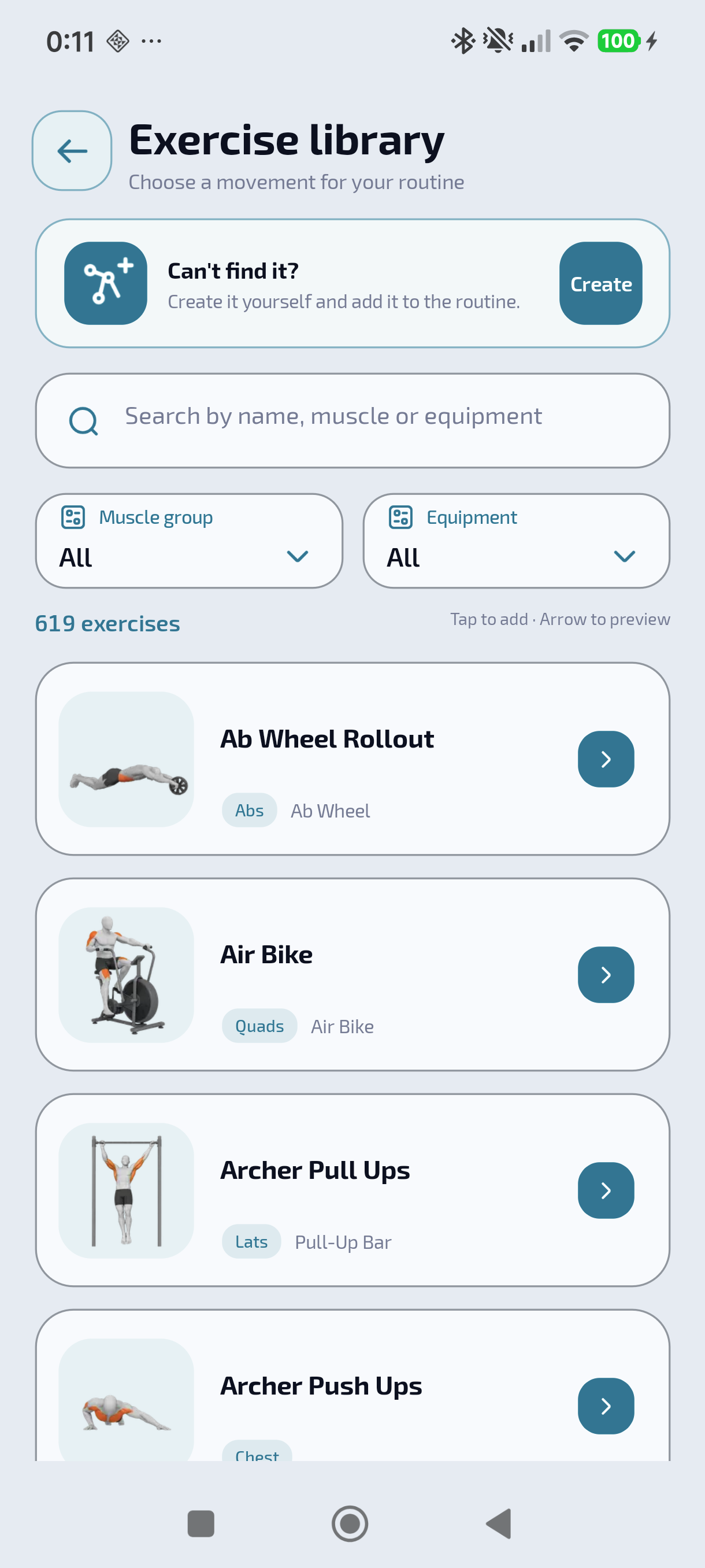
BarbellPin’s exercise library.
Tap Create and choose a lasting name
If you need your own entry, tap Create in the library. Create exercise contains a name, primary muscle, optional equipment, tracking type and notes. You are naming an exercise, rather than a particular session. Avoid “Thursday workout” if you intend to use the entry for several months and on different days of the week.
A useful name distinguishes the movement without requiring you to decode it next time. “Row machine upstairs” might work if that is the distinction you need. “New machine” will stop being helpful when another one arrives. If you already have a record for a different machine, resist reusing its name merely to keep the list short. You could end up comparing two different references without noticing.
You do not have to fit every setting into the name. A note such as “seat at the mark I checked with my trainer” can preserve a detail you already understand. The name identifies the exercise; the note helps you remember its setup. Neither replaces the equipment instructions, and a number you write for yourself is not automatically a recommendation for another person.
Select the muscle and equipment
Choose the appropriate Primary muscle. This selection organises the exercise inside the app. It does not measure the percentage of effort received by each muscle or automatically assess technique. If a variation is difficult to classify, first clarify exactly which movement you intend to record. A convenient category is only useful when it describes the entry accurately.
Machine or equipment (optional) provides another reference. Choose an option that describes the actual equipment when it helps identify the movement. There is no need to turn the name into an advertisement or copy the machine's sales description. You need to recognise the entry when you add it to another routine or return to the routine you have prepared.
Before continuing, read the name and equipment together. Can you distinguish this entry from the ones you already use? Does it contain an abbreviation that only makes sense today? Taking a moment here prevents a collection of nearly identical names. If you only wanted to remember a setup detail for an existing exercise, a note in your routine may be enough.
Choose what you will track
Tracking type determines the exercise's measurements. The options are Weight and reps, Repetitions, Time, Distance and time, Weight and time, Weight and distance and Assistance and reps. Choose according to the activity and the measurements you need. Do not try to squeeze every exercise into a weight-and-repetitions record simply because that is familiar.
For example, a movement you track using load and repetitions requires both numbers. A duration-based movement needs time. On an assisted machine, assistance should not be confused with additional load: the number has a different meaning. These examples explain the form. They are not instructions about which exercises to choose, how to perform them or how much weight to lift.
Consider what you will want to read later. Entering a distance where you expected repetitions will not preserve the information you had in mind. Check the tracking type before creating the entry and preparing its sets. A number on its own is not enough. Ten repetitions, ten seconds and ten metres describe different things, even when the displayed value looks much the same.
Create the entry, then save the routine
Add notes if they help and tap Create and add. This returns the exercise to the routine editor you were using. Review its sets, reference values and rest periods there. Then save the routine itself. Creating the exercise and saving the template are separate moments, so check the result before considering your preparation finished and putting the phone away.
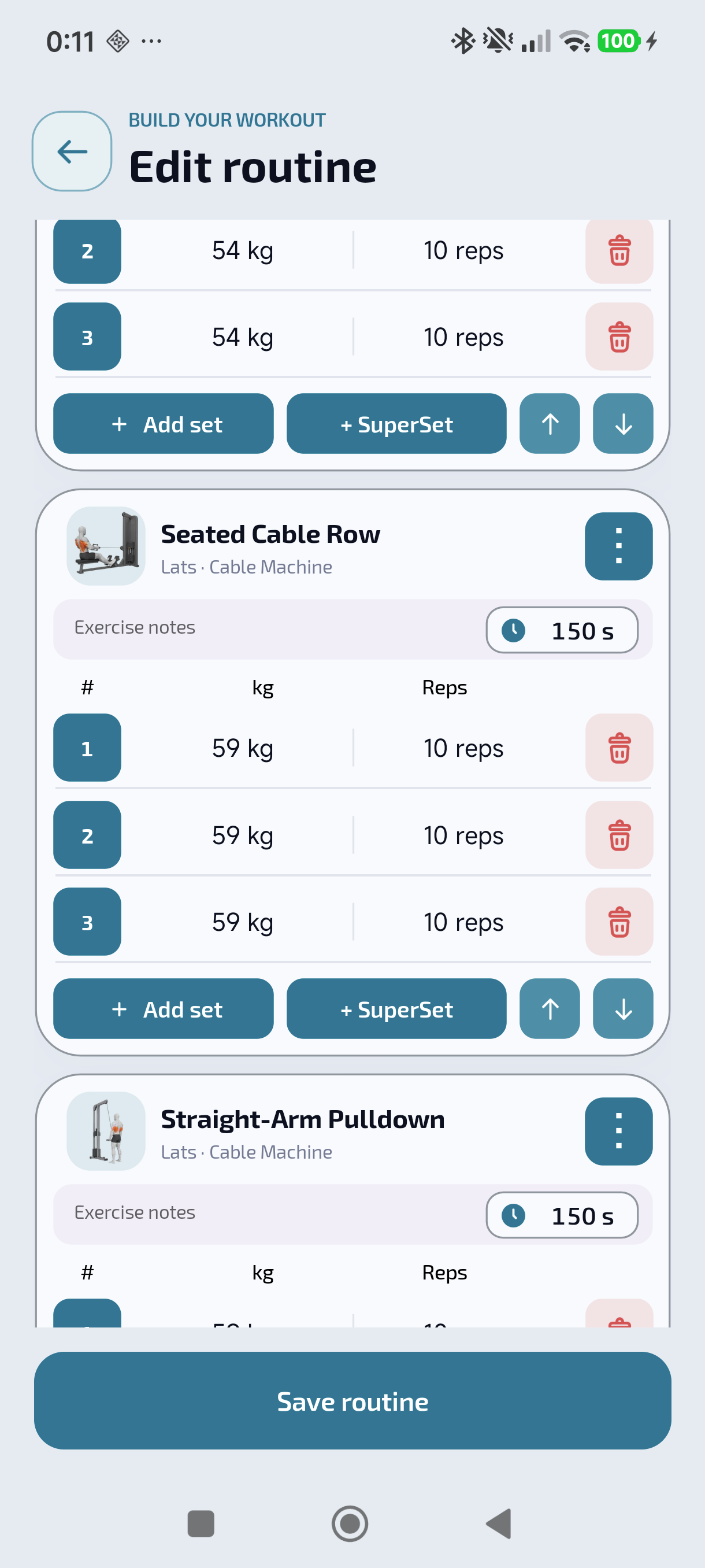
A routine with exercises from the BarbellPin library.
A custom entry does not generate its own photograph or demonstration. Images attached to other library exercises are not automatically transferred to the new one. If you need instructions for the movement, consult a suitable source. The entry stores the information you provide. It cannot, on its own, establish whether the movement has been performed correctly or whether a particular setup suits you.
Check the first use without creating duplicates
When you are ready to exercise, open Workout, choose the routine and confirm. Record what you actually do during the session. The prepared values were references. Planning three sets does not mean three sets have been completed. If you change the load or finish sooner, your record should let you recognise the difference when you next look at it.
If a message appears while creating or saving, read it before repeating the operation. Check whether a field is missing, the name is already in use or the app reports a pending transfer. Creating “machine two” merely to get around uncertainty about the first entry will make the library harder to understand. Return to the editor or library and see what is available.
After you finish and save a session, your workout history is for reviewing the work recorded. Start from Workout for another session; history does not resume a finished workout. The exercise library guide explains creation again if you need it. The aim is straightforward: a month from now, you should still know which movement you recorded and what its numbers mean.
Download BarbellPin