
How to log a workout manually in BarbellPin
Trained without tracking the session? Add what you did on your phone: choose a routine, check the date and sets, then save without starting a timer.
BarbellPin ·
You leave the gym and realise you never started tracking. Perhaps you wrote the weights in a notebook or left your phone in a locker. If you still have the details of what you did, BarbellPin lets you log that workout manually. Start in Workout, using the add entry icon in the header, and choose an existing routine as your starting point.
Before changing anything, separate three different tasks. A manual entry adds a session that has already happened. Editing a routine changes the template you will use again. Opening history lets you inspect saved sessions. Choose a manual entry when the whole workout is missing. If it already exists and only one number is wrong, check its details before creating another entry.

Empty gym with training machines. Photo: Abdul Raheem Kannath, Unsplash. Unsplash License.
Check whether the session is already saved
Open history and find the relevant day. Look at the duration and routine too: two workouts can have the same name but different dates. If you used your watch, check that the phone has received its workout before adding a copy. An upload still waiting to finish doesn't mean the session is lost or needs reconstructing.
Next, find your reference: a notebook, a note on your phone or details you remember with enough confidence. Separate what you completed from what you planned. Three sets of ten on a training sheet describe an intention. If you did two sets, the third shouldn't remain as completed work. Nor should an entire afternoon away from home become the workout duration.
If you cannot reconstruct a required value, don't enter a number just to make the form save. Check your notes and keep only the sets you can record usefully. The form needs at least one exercise with sets or one class. It is better to settle a specific uncertainty before leaving a reference you will later read as fact.
Open the entry and choose a starting routine
On your phone, go to Workout and tap the add entry icon in the header, labelled Log manually for accessibility. Select an existing routine that matches the session. If you have no routines, create one in Routines first. You don't need to start a live workout or wait through a countdown to record something that already happened.
Your selection creates a draft with that routine's exercises and sets. This saves typing but needs checking: the numbers may be prepared targets. Check the exercise variant as well. A cable row and a dumbbell row can sound similar while using loads that aren't useful for the same comparison. Read the whole name rather than choosing the first familiar word.
Your original routine is kept. You can remove exercises and sets from the entry or change the exercise order without rewriting your plan. Stay inside the manual entry form for this task. The normal routine editor serves a different purpose, even though the two views share cards and controls. Check what you are editing before you make changes.
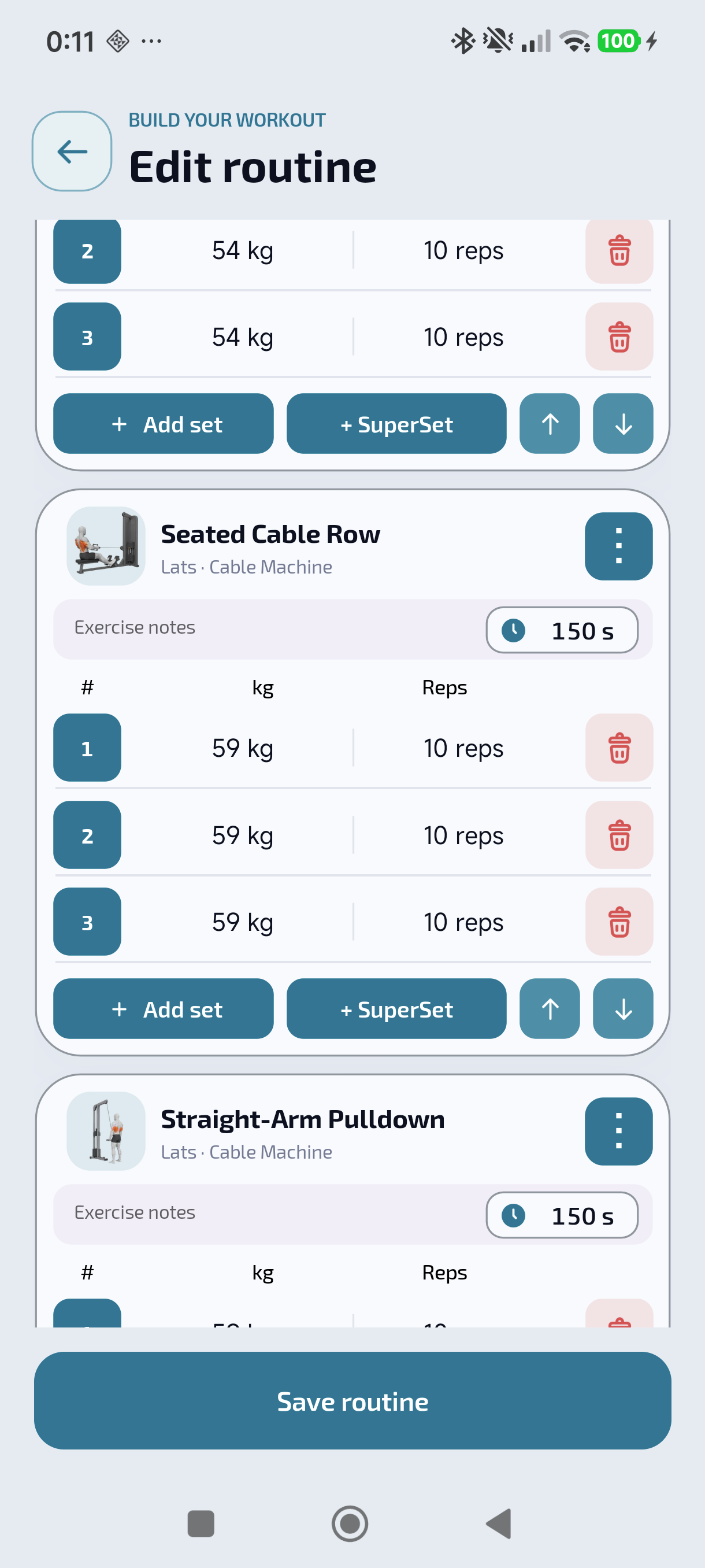
Routine editor with target values and rests. Source: BarbellPin, own screenshot authorised for its website.
Check the date, start time and duration
Choose the day you trained, the starting time and the time you actually spent training. Don't leave the form's initial values untouched out of habit. If you are recording Tuesday's session today, deliberately check the date before moving on to sets. The time you opened the app is not the time that session began.
For example, a session starting at 18:10 and ending at 18:55 lasted 45 minutes, provided those are your actual session details. Don't add travel, shopping afterwards or time in the future. If the routine includes classes, check the start and duration of each part separately. The planned duration of a class doesn't establish that you completed all of it.
If the app says the interval overlaps another workout, return to history and inspect both entries. The session might already be there, or you may have left the wrong date or duration in the form. Correct the inaccurate detail. Don't move the start time a few random minutes just to dismiss the warning: you would preserve a timeline that doesn't describe what happened.

Blue bench with two black dumbbells. Photo: Markus Spiske, Unsplash. Unsplash License.
Make each set reflect what you did
Work through the exercises from top to bottom. Check the measurements each exercise uses: weight and repetitions, time or distance as appropriate. Check the displayed unit too. A number on its own isn't enough if you are reading it in a different unit from the one in your notes. Resolve that before copying the value into every row.
Suppose the template has three sets of ten repetitions at 30 kg. Your note says you did ten and eight repetitions at that load, then skipped the third set. Keep two sets in the entry, put ten in the first and eight in the second, and check the weight on both. Removing the third set from this session leaves it in your usual routine.
Don't change the results to make every row match. The difference between a first set of ten and a second set of eight can help you understand the workout later. If you didn't do an entire exercise, remove it from the entry. If only the order changed, arrange the exercises so the entry is recognisable as the session you completed.
The summary shows exercises, sets and volume from the data you kept. Use it to spot something odd, such as too many sets for a short session, then return to the rows to check. Strength volume isn't calories burned. A manual entry also doesn't add measured heart rate or calories. Entering a duration cannot recover sensor readings that were never captured.

Row of metal dumbbells in a gym. Photo: Jason Grant, Unsplash. Unsplash License.
Save once and check the result
After reviewing the form, tap Save workout and read the confirmation. Wait for the result. If the entry is saved with an upload pending, keep it and let synchronisation finish. Don't open another draft with the same information to try to speed things up. Read the app's message if the connection fails so you know what state the entry is in.
After saving, open the details and check the date, duration and sets, especially anything you corrected before confirming. Actions requiring server confirmation may need to wait for the upload. If you notice a wrong value, correct it in the details when that action is available. You don't need to change the template or log the whole session again to fix a single figure.
The manual workout guide explains this route and its limits. To train on another day, return to Workout and start a new session with your chosen routine. The entry you just added remains a record of what you completed. Close your notebook once the details match, and put your equipment ready for next time.
Download BarbellPin